The 3D view is blank or slow
What you should see
Section titled “What you should see”After you sign in, the stage shows “Loading your build” over a dark background for a few seconds, then the ute appears. On a normal connection this takes 5 to 15 seconds the first time. Switching to another vehicle loads a new model, so it takes a few seconds again.
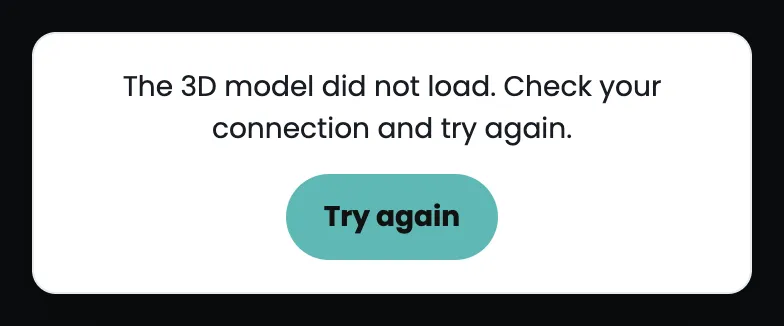
The message “The 3D model did not load”
Section titled “The message “The 3D model did not load””The stage shows a white card: “The 3D model did not load. Check your connection and try again.” with a Try again button.
- Check that you are online. Open any other website in a new tab.
- Select Try again. The model loads again.
- If the stage goes dark and stays dark with no message, reload the page. Select the reload button in your browser, or pull down on the page on a phone. Your build is kept in the page link, so it comes back.
- Still nothing? Try another browser. Chrome, Safari and Edge all work. A very old browser, or a browser with hardware acceleration switched off, cannot show the 3D view.
The stage is black and never says anything
Section titled “The stage is black and never says anything”- Wait 30 seconds. Big models on a slow connection take longer.
- Reload the page.
- Sign in again. If your session has ended, the models are blocked until you do. The page normally says “Your session has ended. Sign in again to keep building.” when this happens.
The ute is slow to turn, or the page feels sluggish
Section titled “The ute is slow to turn, or the page feels sluggish”- Close other tabs and apps. The 3D view uses the graphics chip, and so do video calls and games.
- Select Backdrop on the stage and choose Clean Studio. It is the lightest backdrop. Hex Garage is the heaviest because it draws the ute’s reflection.
- On a laptop, plug in the charger. Some laptops slow the graphics chip on battery.
- On a phone, close the browser fully and open it again.
The picture looks wrong
Section titled “The picture looks wrong”- The colour looks different from the swatch. Choose Backdrop on the stage and try another one. The backdrop lights the ute, so the same paint looks different under each.
- A part floats or sits in the wrong place. Take a screenshot with Save image on the stage and send it to the brand with the vehicle and part names. See Get help.
If it still doesn’t work
Section titled “If it still doesn’t work”Send the brand or your dealer these 3 things: the page link, which browser and device you used, and a screenshot of what you see. See Get help.